IPTV Installation Guide: Set Up Your Subscription on Any Device
Your subscription works with almost any device and IPTV player app. We provide the service — you choose the app you like best. Some apps are free and some are paid, and you can change apps whenever you want. After you order, you receive your login details by email and WhatsApp: an M3U playlist link and Xtream Codes credentials (a server URL, username and password), plus a portal URL if you use a MAG box. Choose your device below and follow the steps — most setups take less than ten minutes.

What You Need Before You Start
- Your subscription details: the M3U link and Xtream Codes login from your confirmation message
- A stable internet connection — at least 15 Mbps for HD and 25 Mbps for smooth 4K
- Your device connected to your TV and signed in to its app store
Amazon Fire TV Stick — Full Installation Tutorial
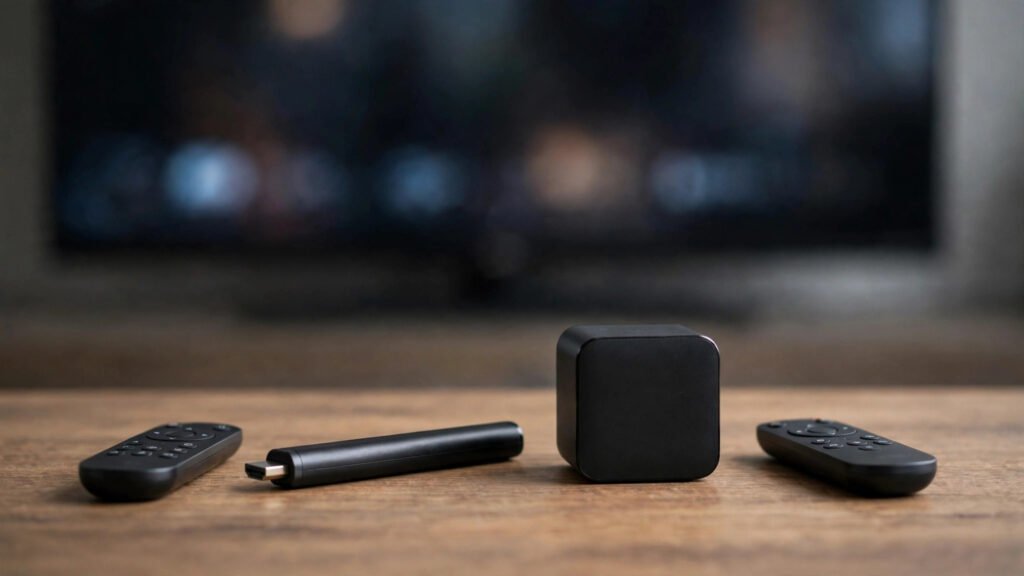
The Firestick is the most popular device with our customers. Most IPTV players are not in the Amazon Appstore, so you install them with a free helper app called Downloader. Follow these five steps:
Step 1 — Install the Downloader App
From the Firestick home screen, go to Find > Search and type “Downloader”. Select the app (orange icon, by AFTVnews), download it and open it once so it is ready.
Step 2 — Allow Apps From Unknown Sources
Go to Settings > My Fire TV > Developer Options. If you do not see Developer Options, go to Settings > My Fire TV > About and click your device name seven times — this unlocks it. Then open “Install unknown apps” (called “Apps from Unknown Sources” on older models) and switch Downloader to ON.
Step 3 — Download Your IPTV Player
Open Downloader and enter the download code or link for the player you want — we send the current codes with your subscription. Download the file and install it. Three popular choices: TiviMate (the best channel guide and recording features, with a paid Premium version), IPTV Smarters Pro (simple and free), and IBO Player Pro (a clean interface with a one-time activation fee). For detailed help, see our guides on installing TiviMate on Firestick and setting up IPTV Smarters Pro on Firestick.
Step 4 — Sign In With Your Subscription
Open your player and choose “Login with Xtream Codes API”. Type the server URL, username and password exactly as they were sent to you, give the playlist a name such as “4K Media”, and confirm. Most players also accept your M3U link instead, if you prefer that.
Step 5 — Start Watching
Your channels load grouped by category. Give the TV guide (EPG) a few minutes to fill in, mark your favorite channels, and you are ready to watch.
Want the long version, with Firestick preparation, optimization tips and troubleshooting? Read our complete guide: How to Set Up Firestick With TV 2026.
Don’t have a subscription yet? See our Premium IPTV plans and order in minutes — every plan starts with a 24-hour free trial.
Smart TV (Samsung & LG)
- Open your TV’s app store — Samsung Apps on Samsung TVs, the LG Content Store on LG TVs.
- Search for a recommended player such as IBO Player Pro, Flix IPTV or IPTV Smarters, and install it.
- Open the app. Some TV apps sign you in directly with Xtream Codes or an M3U link; others show a MAC address on screen and ask you to activate the app and upload your playlist on the app’s own website — write the MAC address down if you see one.
- Enter your subscription details, load the playlist, and your channels appear.
Android TV & Android Box
- Open the Google Play Store on your TV or box.
- Install your player — TiviMate and IPTV Smarters Pro are both available there.
- Open the app and sign in with your Xtream Codes credentials (or paste your M3U link).
- Load the channels and let the guide populate.
MAG Box & STB Emulator
- Send us the MAC address printed on the sticker under your box, so we can activate your line.
- On the box, go to Settings > System settings > Servers > Portals.
- Enter the portal URL we send you and save.
- Reboot the box — your channels and guide load automatically.
Mobile & Tablet (iOS & Android)
- Download a player from the App Store or Google Play — for example IPTV Smarters or XCIPTV.
- Sign in with your Xtream Codes login or paste your M3U link.
- That is all — for HD and 4K, watch on a good Wi-Fi connection.
Quick Fixes If Something Doesn’t Work
- The app will not install: check that unknown sources are allowed for Downloader (Step 2 above) and that your device has free storage space.
- Login failed: type the server URL exactly as sent, including http or https and any port number, with no extra spaces.
- Channels buffer: restart your router and Firestick, move the router closer or use a wired Ethernet adapter — more tips in our guide on how to fix IPTV buffering on Firestick and Smart TV.
Related Guides
- How to Set Up Firestick With TV 2026
- How to Install TiviMate on Firestick
- How to Fix IPTV Buffering on Firestick and Smart TV
Follow our WhatsApp Channel for daily schedules and offers: https://whatsapp.com/channel/0029VaC7mmmBadmgFUAjJk3M