A MAG box is a small set-top box made for one job: playing IPTV on your TV. Models like the MAG 254, MAG 322 and MAG 424 have been used for years because they are simple, fast and reliable — you plug one in, enter a portal address, and your channels appear. In this guide, you will learn how to set up IPTV on MAG box in 2026: what you need, how to enter your portal, and how to fix the most common problems.
Quick Answer: To set up IPTV on MAG box, connect the box to your TV with an HDMI cable and to the internet with Ethernet or Wi-Fi, open Settings, then System Settings, then Servers, then Portals, and enter the portal URL your IPTV provider sent you. Restart the box, and it loads your channels, films and programme guide from the portal automatically.
What You Need to Set Up IPTV on MAG Box
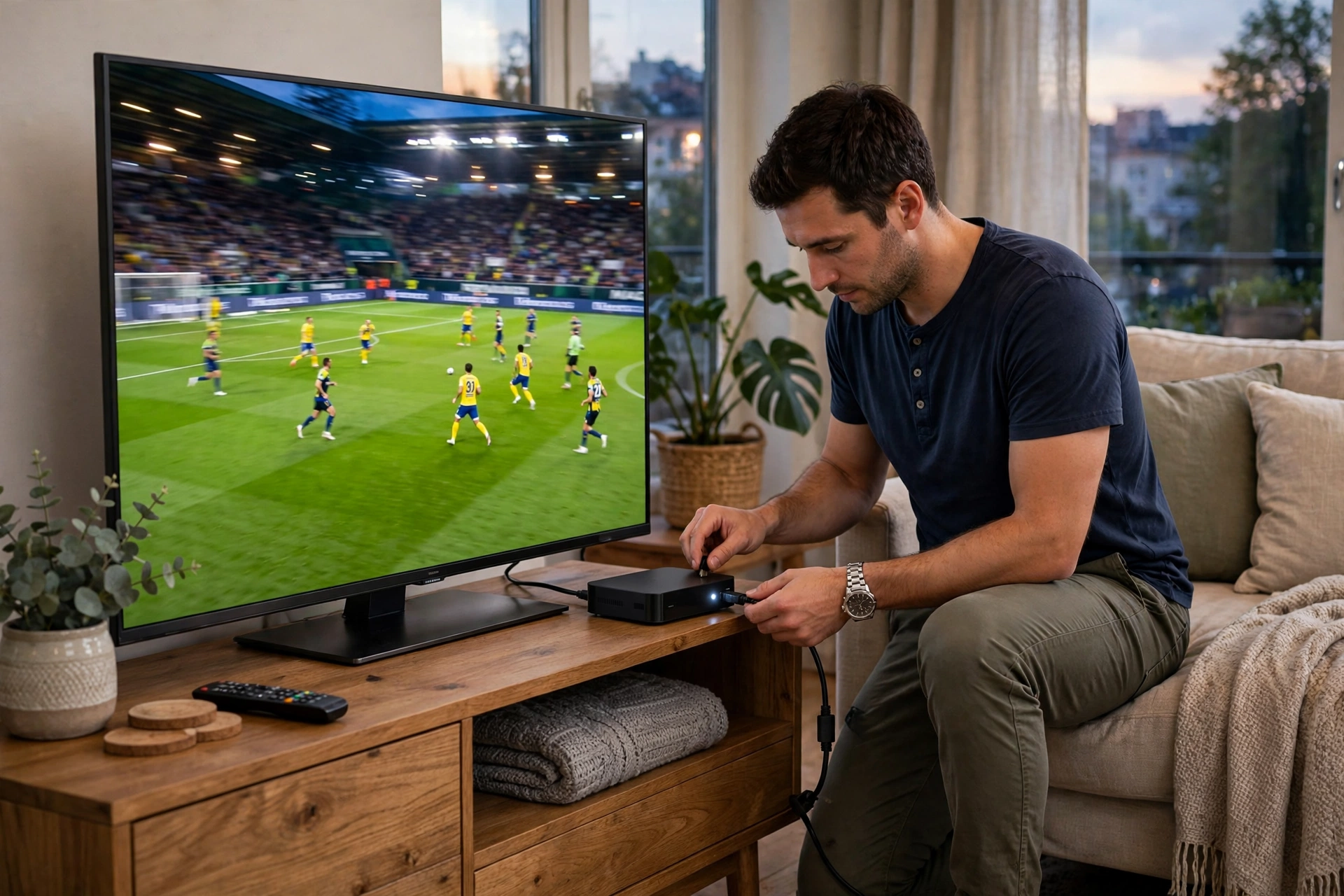
Before you start, gather four things. First, the MAG box itself — a MAG 254, 322, 424 or newer model — with its remote and power adapter. Second, a TV with a free HDMI port and the HDMI cable that came with the box. Third, an internet connection: a wired Ethernet cable is best for a MAG box, but Wi-Fi works too on models that support it. Fourth, an active IPTV subscription that supports MAG boxes: after you sign up, your provider sends you a portal URL, and sometimes a MAC address to register. For background on how IPTV works, see the IPTV article on Wikipedia and the official MAG product pages from Infomir.
How Do I Connect My MAG Box to My TV?
Connecting a MAG box takes two minutes. Plug the HDMI cable into the back of the box and into a free HDMI port on your TV, then plug in the power adapter and switch the box on. Use your TV remote to select the right HDMI input, and the MAG loading screen appears. If your box has an Ethernet port, plug a network cable from your router into the box for the most stable connection. If you use Wi-Fi instead, open Settings, then Network, then Wi-Fi, pick your network and enter the password.
How to Add Your IPTV Portal to a MAG Box
The portal is the address your MAG box uses to load your channels:
Step 1 — Open Settings. From the main menu, go to Settings, then System Settings, then Servers, then Portals.
Step 2 — Enter the portal name and URL. Type a name such as “4K Media” in Portal 1 name, then type the portal URL your provider sent you exactly as written — one wrong character breaks the connection.
Step 3 — Save and restart. Press OK to save, go back to the main menu and restart the box from Settings, then System Settings, then Reboot Device, or unplug it for ten seconds.
Step 4 — Wait for the channels to load. After the restart, the box connects to the portal and downloads your channels, films and programme guide. This can take a minute or two the first time.
Step 5 — Start watching. Browse the channel list or the TV guide, pick a channel and press OK. You can mark favourites by pressing the FAV button on the remote.
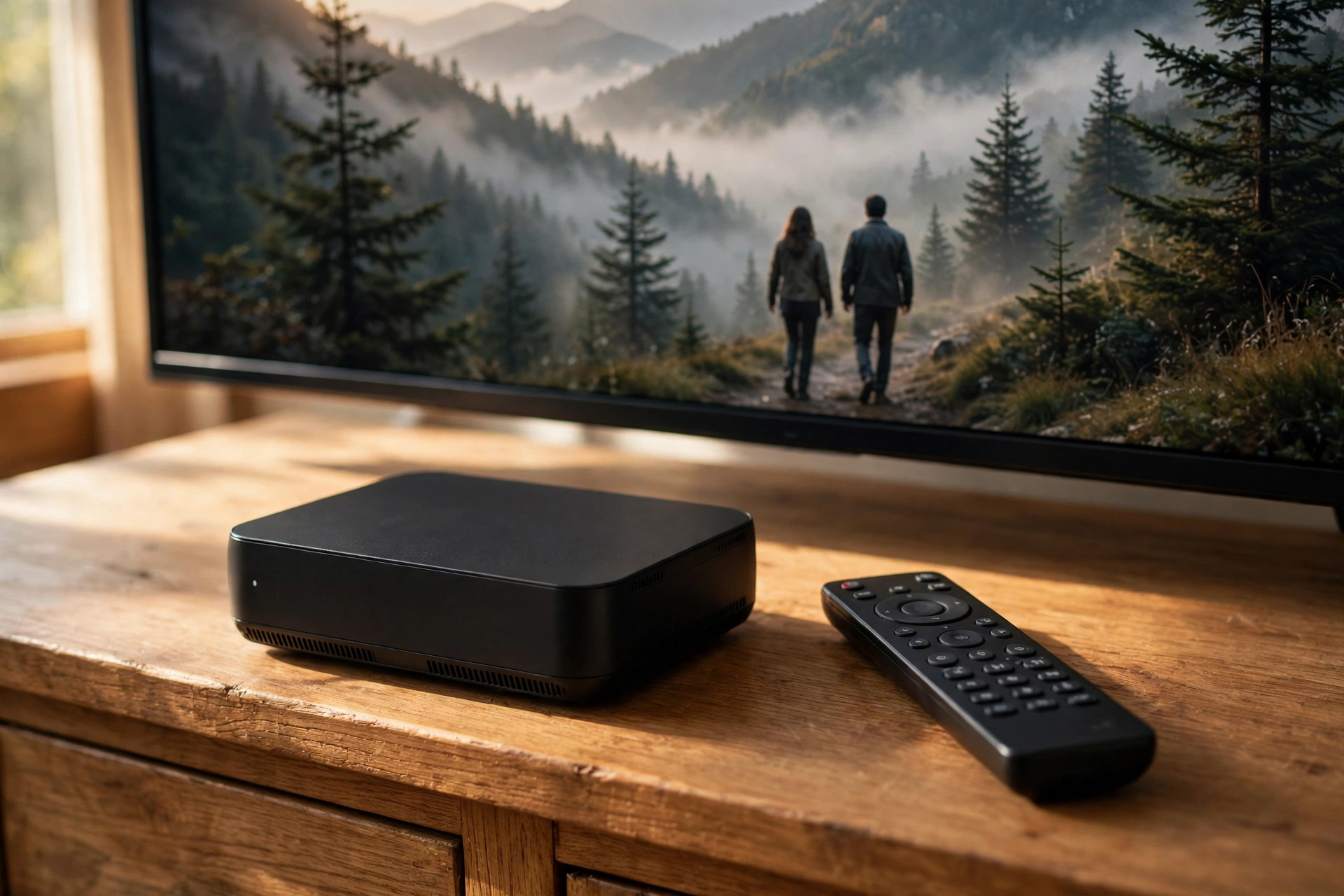
Some providers ask you to send them the box’s MAC address first, so they can activate it on their side. You can find it on the sticker under the box, or in Settings, then System Settings, then Device Info.
4K Media TV offers 57,000+ live channels and 185,000+ movies and series, with Premium one-time pricing, a 24-hour free trial, and ordering through WhatsApp.
Ready to watch? If you do not have a subscription yet, take a look at our Premium IPTV plans — choose the plan that fits your household, order in a few clicks, and your login details arrive quickly so you can start streaming on your MAG box today.
Can I Watch IPTV on MAG Box in 4K?
Yes, you can watch IPTV on MAG box in 4K if your box model supports it and your subscription includes 4K channels. The MAG 424 and newer models support 4K, while the older MAG 254 is limited to Full HD. Check your model on the sticker under the box, set your TV to its highest resolution, and pick a 4K channel from the portal. You also need at least 25 Mbps of steady internet speed for 4K. For the sharpest picture, see our guide to 4K IPTV streaming.
IPTV on MAG Box Not Working? Quick Fixes
Most problems with IPTV on MAG box have simple causes. If the box shows a black screen after loading, the portal URL is usually wrong — retype it carefully in Settings, then Servers, then Portals. If channels buffer, restart your router, test your speed, and switch to a wired connection if you use Wi-Fi. If the box says your MAC address is blocked, send the MAC address from the sticker under the box to your provider so they can activate it. If the programme guide is empty, wait a few minutes after the first load, then restart the box.
Tips for the Best IPTV on MAG Box Experience
A few small habits make a big difference. Always use a wired Ethernet cable when you can — a MAG box streams far more reliably on cable than on Wi-Fi. Keep the box software updated from Settings, then System Settings, then Software Update. Restart the box once a week to clear its memory. Add your most-watched channels to favourites so they sit at the top of the list.
IPTV on MAG Box: Frequently Asked Questions
What is a MAG box?
A MAG box is a small set-top box made by Infomir for watching IPTV on a TV. It connects to a portal URL from your provider and loads your live channels, films and programme guide.
Do I need a subscription to use a MAG box?
Yes. A MAG box is only a player — it shows no channels on its own. You need an active IPTV subscription, and your provider sends you the portal URL to enter on the box.
Why does my MAG box say “portal not found”?
That usually means the portal URL was typed wrong, or your provider has not activated your box’s MAC address yet. Check the URL character by character and confirm with your provider.
Is IPTV on MAG box legal?
Watching IPTV through a licensed provider is legal. Always use a reputable subscription and avoid services that promise thousands of premium channels for almost nothing.
Related guides
- How to watch IPTV on Kodi
- How to set up IPTV on Android TV
- set up IPTV on Formuler box
- set up IPTV on Enigma2
Follow our WhatsApp Channel for daily schedules and offers: https://whatsapp.com/channel/0029VaC7mmmBadmgFUAjJk3M