If you want to set up IPTV on Apple TV, it takes about ten minutes. Apple TV has no built-in IPTV app, so the setup has two parts: install an IPTV player from the App Store, then add your subscription details. This guide walks you through both, plus the settings that keep 4K streams smooth.

What You Need Before You Start
Have these ready before you touch the remote:
- An Apple TV 4K or Apple TV HD connected to your TV and signed in with your Apple Account. Apple’s own Apple TV 4K User Guide covers first-time setup if your box is brand new.
- A stable internet connection. Smooth HD needs around 10 Mbps, and 4K needs around 25 Mbps.
- Your IPTV subscription details. Your provider normally gives you an M3U playlist link, or Xtream Codes login details (a server URL, a username, and a password). Keep them handy; you will type them into the player app.
- An IPTV player app. This is the app that plays your channels, installed from the App Store on your Apple TV.
How to Set Up IPTV on Apple TV in 4 Steps
The four steps: connect and update the box, install a player, add your subscription, then organize your channels.
Step 1: Connect and Update Your Apple TV
First, make sure the box itself is ready:
- Plug your Apple TV into the TV with an HDMI cable and connect the power.
- Connect to Wi-Fi under Settings > Network, or plug in an Ethernet cable if your model has a port. A cable is the most stable option for 4K.
- Check for a tvOS update under Settings > System > Software Updates and install anything offered. Updates fix playback bugs that can look like IPTV problems.
- Open the App Store and confirm you are signed in.
Step 2: Choose and Install an IPTV Player
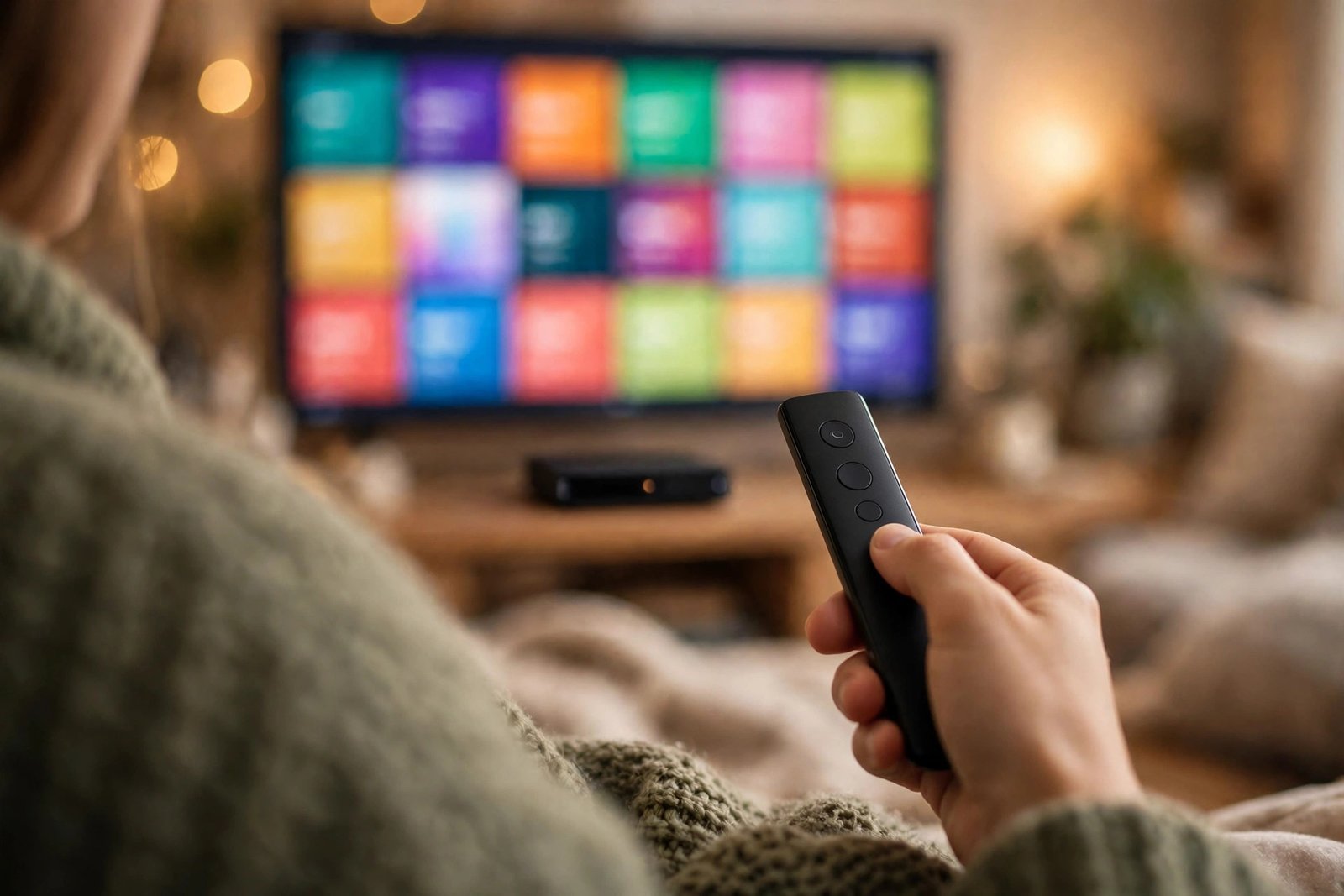
Apple TV does not play IPTV on its own, so you need a player app. Open the App Store on your Apple TV, search for “IPTV player”, and pick one that fits how you watch. Popular choices on tvOS include IPTV Smarters Pro and iPlayTV. If one name is missing from the store, search for another player with good recent reviews instead.
Two things to know before you choose:
- TiviMate is not available on Apple TV. It is an Android app, so Firestick and Android TV guides for it do not apply here. Pick a player made for tvOS.
- The player is not the subscription. The app only plays the channels; your subscription details unlock them. A free player app does not include free channels.
Install the player, open it, and allow any permissions it asks for.
Step 3: Add Your IPTV Subscription
Every player asks for your subscription in roughly the same way. There are two common methods:
Option A: Log in with Xtream Codes
This is the easiest method if your provider gave you login details:
- In the player app, choose “Login with Xtream Codes API” or a similarly named option.
- Enter the server URL exactly as your provider gave it, then your username and password.
- Give the playlist a name you will recognize, such as “My IPTV”, and save it.
- Wait while the app loads your channels. The first load can take a few minutes.
Option B: Add an M3U playlist link
If your provider gave you a playlist link instead:
- In the player app, choose “Add Playlist” or “Load Your Playlist or File/URL”.
- Select the M3U URL option and paste or type the full playlist link.
- Save it and let the app load the channels.
If your provider also gave you an EPG link (the TV guide data), add it in the app’s EPG settings. Without it, you will see channels but no program information.
Ready to start watching? See our Premium IPTV plans and order yours in minutes.
Step 4: Organize Channels and Turn On the TV Guide
Once the channels load, spend two minutes setting the app up:
- Check the TV guide. Open the guide view and confirm program titles appear. If it is empty, the EPG link was not added or has not loaded yet; check the app’s EPG settings.
- Make a favorites list. Mark the channels you watch so you are not scrolling through hundreds of entries every evening.
- Hide groups you never watch. Most players let you hide whole channel groups, such as shopping sections.
- Test a few channels. Try a live channel, a sports channel, and a movie channel. If they all play, you are done.
Best Settings for Smooth 4K Streaming

Apple TV is a strong streaming box, but two settings make a visible difference when you set up IPTV on Apple TV:
- Match content frame rate. Go to Settings > Video and Audio and turn on Match Content for frame rate. This stops the judder you sometimes see on sports.
- Use a wired connection when you can. If your Apple TV sits near the router, Ethernet removes Wi-Fi interference entirely. Otherwise, use the 5 GHz Wi-Fi band when the box is in the same room as the router.
- Keep tvOS and the player app updated. Outdated apps are a common cause of channels that suddenly stop loading.
- Restart the box after a big change. If you change network settings or reinstall the player, restart the Apple TV first.
Common Problems and Quick Fixes
The player app is not in the App Store
App availability varies by region and over time. Search for a different IPTV player with recent reviews instead.
Login fails with the right details
Check for extra spaces before or after the server URL, username, and password. Typing a long URL with the Siri Remote is error-prone; use your iPhone keyboard to type instead if the player offers it. If the details still fail, confirm with your provider that the subscription is active.
Channels load but will not play
Try another channel first. If only one channel fails, the problem is that stream, not your setup. If nothing plays, restart the Apple TV and check your internet speed.
The picture buffers during live sports
Live sports are the hardest test for any connection when you set up IPTV on Apple TV. A wired connection helps most, followed by closing other heavy downloads on your network.
FAQ
Can I watch IPTV on Apple TV without an app?
No. Apple TV has no built-in IPTV support, so you need a player app from the App Store plus your subscription details to set up IPTV on Apple TV.
Does TiviMate work on Apple TV?
No. TiviMate is made for Android devices such as Firestick and Android TV. On Apple TV, use a tvOS player such as IPTV Smarters Pro or iPlayTV.
Is IPTV on Apple TV in 4K?
It can be, if your subscription includes 4K streams and your connection is fast and stable after you set up IPTV on Apple TV. Apple TV 4K handles playback; stream quality depends on your provider and your internet speed.
Do I need a VPN for IPTV on Apple TV?
Not normally when you set up IPTV on Apple TV. A VPN only helps if your internet provider slows down streaming traffic. Otherwise it adds delay, so test with and without it first.
Related guides
- How to Fix IPTV Buffering on Firestick and Smart TV
- How to Install TiviMate on Firestick & Android TV
- watch IPTV on iPhone and iPad
Follow our WhatsApp Channel for daily schedules and offers: https://whatsapp.com/channel/0029VaC7mmmBadmgFUAjJk3M