Roku is one of the most popular streaming devices in the world: simple, fast and affordable. Millions of people use it every day for Netflix, YouTube and live TV. But if you want to watch IPTV on Roku, you will quickly notice a problem: there is no official IPTV player app in the Roku Channel Store. The good news is that you can still watch IPTV on Roku in 2026, and setup only takes a few minutes. This guide shows the three easiest ways: screen mirroring, AirPlay, and casting apps.
Can You Watch IPTV on Roku?
Yes, you can watch IPTV on Roku, but not the same way as on a Firestick or Android TV. Roku runs a closed system, so you cannot install IPTV player apps such as IPTV Smarters or TiviMate directly on the device. Instead, you play the stream on your phone, tablet or computer, and send the picture to your Roku. This is called screen mirroring or casting, and Roku supports it officially. Picture quality is usually very good, as long as your Wi-Fi is strong. You need an active IPTV subscription, a player app on your phone, and an updated Roku.
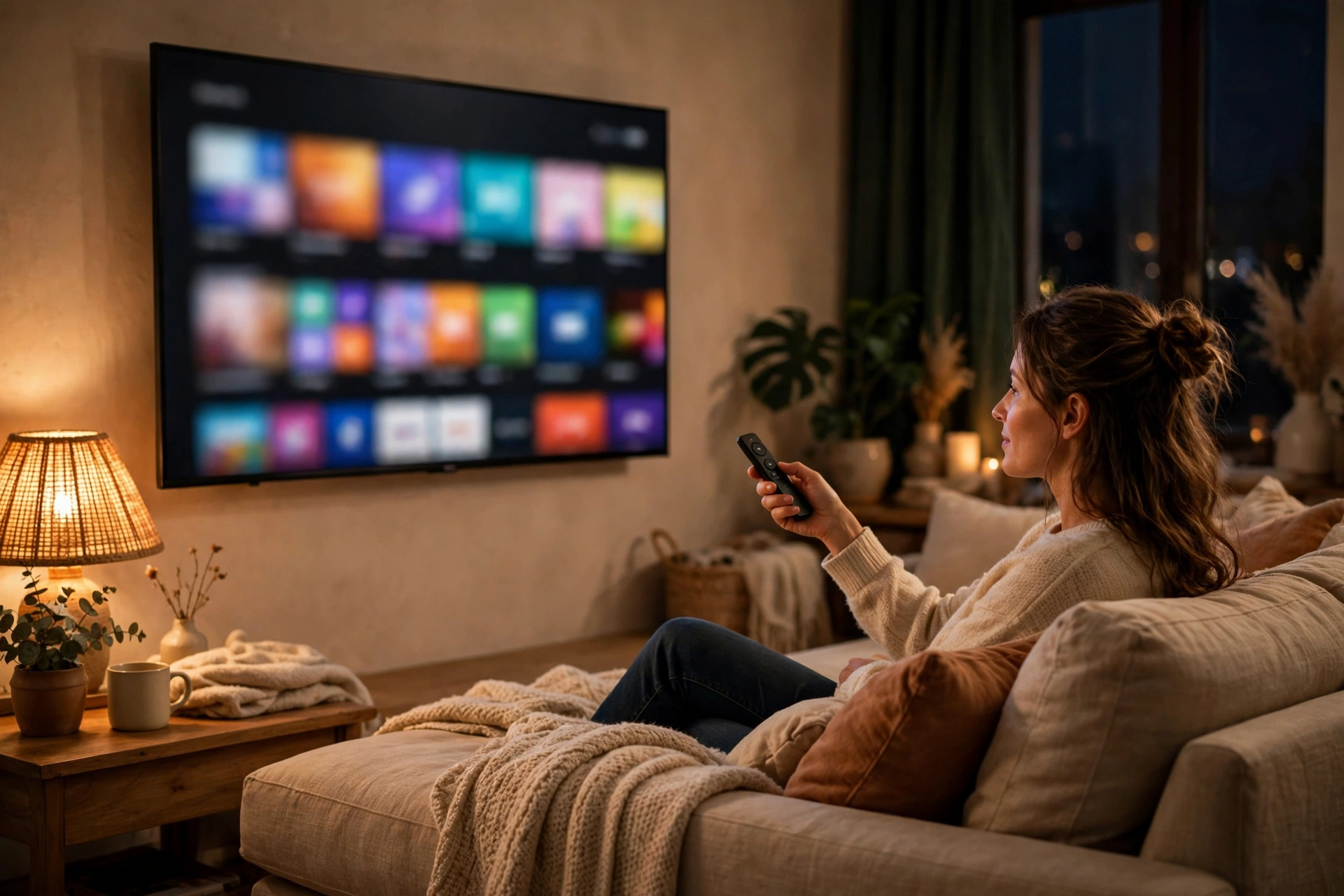
How to Watch IPTV on Roku with Screen Mirroring
Screen mirroring is the most popular way to watch IPTV on Roku, and it works with most Android phones, tablets and Windows computers. First, turn it on: go to Settings, then System, then Screen mirroring, and set the mode to “Always allow” or “Prompt”. Next, make sure your phone and Roku use the same Wi-Fi network — mirroring will not work if one device is on a different network or on mobile data.
Then open your IPTV player app and start a channel. On Android, swipe down and tap “Cast”, “Smart View” or “Screen Cast”, depending on your phone. Select your Roku. After a few seconds, your phone screen appears on the TV; turn the phone sideways for a full-screen picture. Keep the phone awake, because the picture stops if it locks. If the picture is blurry or keeps stopping, move closer to your router, or switch to the 5 GHz band.
How to Cast IPTV on Roku from iPhone or iPad with AirPlay
If you use an iPhone or iPad, AirPlay is the easiest way to watch IPTV on Roku. Most recent Roku devices support AirPlay 2, including the Roku Streaming Stick 4K, Roku Express 4K, Roku Ultra and most Roku TVs. Turn on AirPlay: go to Settings, then Apple AirPlay and HomeKit, and set AirPlay to “On”. Connect your iPhone and Roku to the same Wi-Fi network, then open your IPTV player app and start a channel.
Tap the AirPlay icon and choose your Roku. The video starts on your TV within seconds, while your iPhone works as a remote for pausing, changing channels and volume. AirPlay usually gives a smoother picture than standard mirroring, because it sends the video directly instead of copying the whole phone screen. If your Roku is older and shows no AirPlay option, use screen mirroring with an Android device or a Windows computer instead.
Use a Casting App to Watch IPTV on Roku
A third option is a casting app, such as Web Video Caster, on your phone. These apps send a video stream from a web address or playlist directly to your Roku, without mirroring your whole screen. That means you can lock your phone or use it for something else while the video keeps playing. Install a casting app, enter your IPTV playlist link or portal details, select your Roku and press play.
Casting apps work best with M3U playlists. Some have a free version with adverts and a paid version without them. Setup takes a little longer than mirroring, but it is the most comfortable way to watch for a long evening, because your phone stays free and the battery lasts longer.
Want premium channels in 4K with no buffering? See our Premium IPTV plans and order in minutes — ready within 10 minutes to 8 hours.
Why There Is No Official IPTV App for Roku
Many people wonder why they cannot simply download an IPTV player from the Roku Channel Store. Roku controls its app store very strictly: every channel must pass a review, and Roku does not allow apps that mainly play streams from outside providers. Unlike the Firestick, Roku also does not let you install apps from outside the official store. In practice this is fine: mirroring and casting are official Roku features. You lose a little convenience versus a Firestick, but you keep the simple Roku interface and remote that many people prefer.
Tips for Smooth IPTV on Roku Streaming
Once you can watch IPTV on Roku, a few simple habits keep the picture smooth. First, check your internet speed: you need around 10 Mbps for HD and around 25 Mbps for 4K. If the number is too low, move your router closer to the TV or restart it. Second, use the 5 GHz Wi-Fi band when you can, because it is faster and less crowded than the 2.4 GHz band. Third, keep your Roku updated: go to Settings, then System, then System update. Finally, close other apps on your phone before mirroring, and restart your Roku from time to time to clear small glitches.
IPTV on Roku vs Firestick: Which Is Easier?
The Firestick is easier for IPTV, because you can install an IPTV player directly on it and open channels with the remote. Roku needs a phone or tablet as a middleman, which is one extra step. Roku has a simpler menu, a better remote and fewer home-screen adverts, which many people prefer for everyday watching. If you already own a Roku, there is no need to buy another device: mirroring works well and costs nothing extra. If you are buying a device mainly for IPTV, a Firestick is the more direct choice.
Frequently Asked Questions
Is it legal to watch IPTV on Roku?
Watching IPTV is legal when the service has the rights to the channels it offers. Mirroring and AirPlay are official Roku and Apple features. Always choose a legitimate provider.
Can I install IPTV Smarters on Roku?
No, IPTV Smarters is not in the Roku Channel Store, and Roku does not allow installing apps from outside the store. Use screen mirroring or AirPlay from your phone instead.
Does screen mirroring reduce the picture quality?
It can, a little, because the picture is compressed over Wi-Fi. With a strong 5 GHz connection the difference is hard to notice, and AirPlay looks even better because it sends the video directly.
Which Roku models support AirPlay?
AirPlay 2 is supported on the Roku Streaming Stick 4K, Roku Express 4K and 4K+, Roku Ultra, Roku Streambar, and most Roku TVs made in recent years. Check the AirPlay menu in your Roku settings to confirm.
Related guides
- How to Fix IPTV Buffering on Firestick and Smart TV
- How to Watch Live Sports on IPTV: Easy 2026 Guide
Follow our WhatsApp Channel for daily schedules and offers: https://whatsapp.com/channel/0029VaC7mmmBadmgFUAjJk3M