Watching IPTV on Samsung TV is simple once you know which app to install. Samsung’s Tizen operating system has its own app store with several good IPTV players, so you can load your playlist and start watching live channels, films and sport without buying any extra device. In this guide, you will learn how to watch IPTV on Samsung TV in 2026, step by step, from installing the player to fixing the most common problems.
What You Need to Watch IPTV on Samsung TV
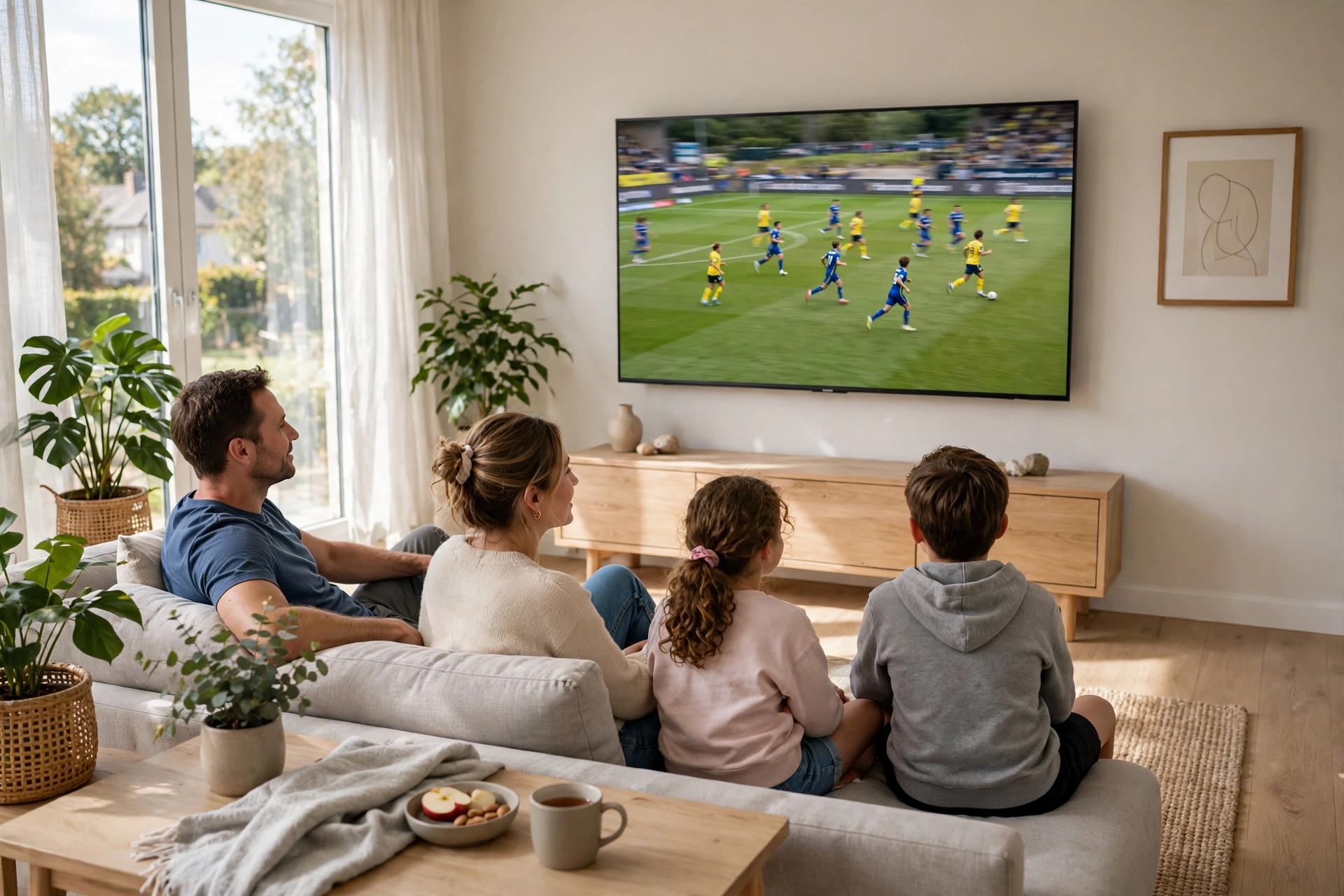
Before you start, make sure you have a Samsung Smart TV running Tizen — most models made since 2017 work well — and a stable internet connection. A wired Ethernet cable gives the smoothest stream, but strong Wi-Fi is fine for most homes. You also need an active IPTV subscription: your provider sends you a playlist link (M3U URL) or Xtream Codes login details after you sign up. Keep your Samsung remote nearby, as you will use it to open the app store and install your player.
If your TV has not been updated in a while, check for a software update first. Go to Settings, then Support, then Software Update, and choose Update Now. A current version of Tizen avoids most app problems and gives you access to the newest IPTV players.
How to Set Up IPTV on Samsung TV with an App
The easiest way to watch IPTV on Samsung TV is with a player app from the Samsung app store. Here is the full process:
Step 1 — Open the Apps store. Press the Home button on your remote and select the Apps icon at the bottom of the screen.
Step 2 — Search for an IPTV player. Use the search icon and type “IPTV”. Popular choices include Smart IPTV, IPTV Smarters Pro and SS IPTV. Pick one with good ratings and install it.
Step 3 — Open the app and add your playlist. Launch the player and log in with your M3U playlist URL or your Xtream Codes username, password and server address.
Step 4 — Wait for the channels to load. The app downloads your channel list and programme guide. The first load usually takes one or two minutes.
Step 5 — Start watching. Browse the categories, choose a channel and enjoy. Save your favourite channels so they are always one click away.
Some players are free, while others charge a small one-time fee per TV. Smart IPTV, for example, asks for a one-time payment after a short trial. Check what each app offers before you pay.
Watching IPTV on Samsung TV with Smart IPTV
Smart IPTV is one of the most popular choices for watching IPTV on Samsung TV. Its interface is fast, it handles very large channel lists well, and it shows a programme guide next to the channel list so you can see what is on now and next. After installing it, you upload your playlist through the app’s website using the MAC address shown on your TV screen, or you enter your Xtream Codes details directly in the app. Your channels then appear grouped by country and category.
If you prefer a different layout, IPTV Smarters Pro is a strong alternative with catch-up TV, favourites and a built-in player that remembers where you stopped a film. Whichever player you choose, the setup is the same: install the app, add your playlist, wait for the list to load, and watch. For background on how IPTV works, see the IPTV article on Wikipedia and the official Samsung support pages.
Ready to watch? If you do not have a subscription yet, take a look at our Premium IPTV plans — choose the plan that fits your household, order in a few clicks, and your login details arrive quickly so you can start streaming on your Samsung TV today.
IPTV on Samsung TV Not Working? Quick Fixes
Most problems with IPTV on Samsung TV have simple causes. If the app will not open, hold the power button on the remote until the TV restarts, or unplug the TV for thirty seconds. If channels buffer, test your internet speed: you need at least 15 Mbps for smooth HD and 25 Mbps for 4K. Move the router closer to the TV or use a wired connection if the Wi-Fi signal is weak.
If you see a “playlist failed to load” message, check the M3U link or Xtream Codes details for typos — one wrong character breaks the login. If the app asks you to upload the playlist again, your trial may have ended or the playlist link may have changed, so check with your provider. If a single channel is black while others work, the problem is usually on the provider’s side, so try it again later.
Tips for the Best IPTV on Samsung TV Experience
A few small habits make a big difference. Use the favourites list so your main channels are always one click away, and turn on the programme guide to see what is coming up next. If your provider offers catch-up TV, use it to watch programmes you missed. Keep your TV software updated, restart the TV once a week, and set the picture mode to Movie when you watch films for the most natural colours.
IPTV on Samsung TV: Frequently Asked Questions
Can I watch IPTV on any Samsung TV?
Almost any Samsung Smart TV running Tizen can run an IPTV player from the Samsung app store. Very old models that no longer receive store updates may need an external device such as a Firestick instead.
Do I need a Firestick for IPTV on Samsung TV?
No. You can watch IPTV on Samsung TV directly with an app from the Samsung store. A Firestick is only useful if your TV is old or you prefer the Firestick’s apps.
Why does my IPTV keep buffering on Samsung TV?
Buffering is usually caused by a slow or unstable connection. Check your speed, use a wired connection if possible, and close other apps on the TV while you stream.
Is IPTV on Samsung TV legal?
Watching IPTV through a licensed provider is legal. Always use a reputable subscription and avoid services that promise thousands of premium channels for almost nothing, as they often stream without permission.
Related guides
- How to set up IPTV on a Smart TV
- How to watch IPTV on LG TV
- watch IPTV on Hisense TV
- watch IPTV on Vizio TV
Follow our WhatsApp Channel for daily schedules and offers: https://whatsapp.com/channel/0029VaC7mmmBadmgFUAjJk3M