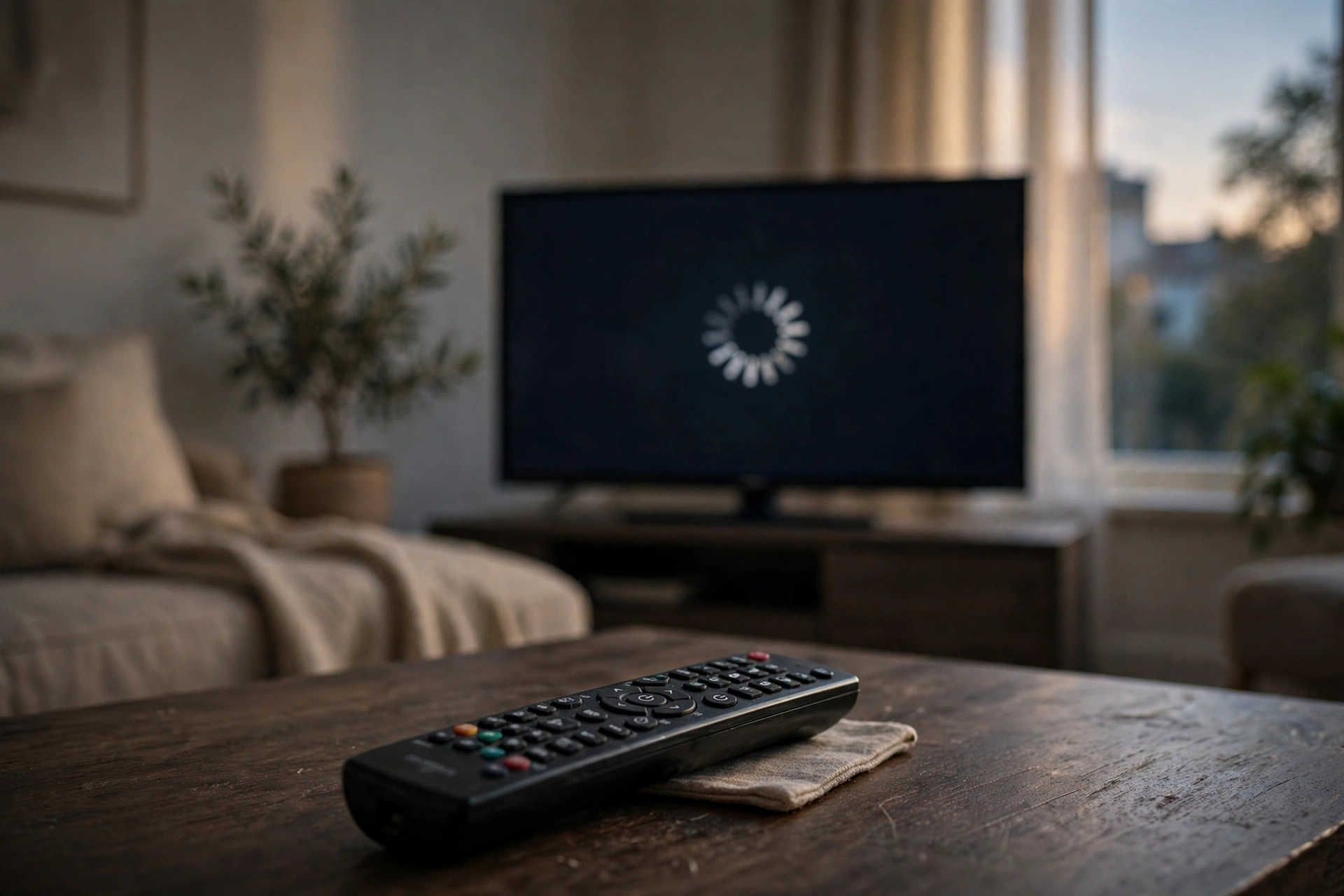
You sit down to watch the match, open your IPTV app, and nothing happens. The screen stays black, the channel keeps loading, or the app closes by itself. Few things are more annoying than IPTV not working, especially when you paid for the subscription. Most IPTV problems have simple causes: weak Wi-Fi, an expired subscription, an app that needs an update, or a small mistake in the settings. Work through the ten fixes below — they solve the problem in most cases.
Diagnose It First: Why Is Your IPTV Not Working?
A quick diagnosis saves time. Ask three questions. First, is the problem on every channel or just one? If only one channel is down, the problem is probably on the provider’s side. Second, is it on one device or all of them? If your phone plays the same channel fine but the TV does not, the TV app or its connection is at fault. Third, is your internet working for other things? Open YouTube on the same device: if it does not load either, your internet is down, not your IPTV.
10 Fixes for IPTV Not Working
1. Restart the app and your device
Close the IPTV app completely and open it again. If that fails, restart the device: unplug a Firestick or TV for thirty seconds, then plug it back in. A restart clears temporary errors and works most often. It takes one minute, so try it first.
2. Check your internet connection
IPTV needs a stable connection, and weak Wi-Fi is the most common cause. Run a speed test on the same device: you need around 10 Mbps for HD and 25 Mbps for 4K. If the speed is far below that, move closer to the router or switch to the 5 GHz band.
3. Restart your router
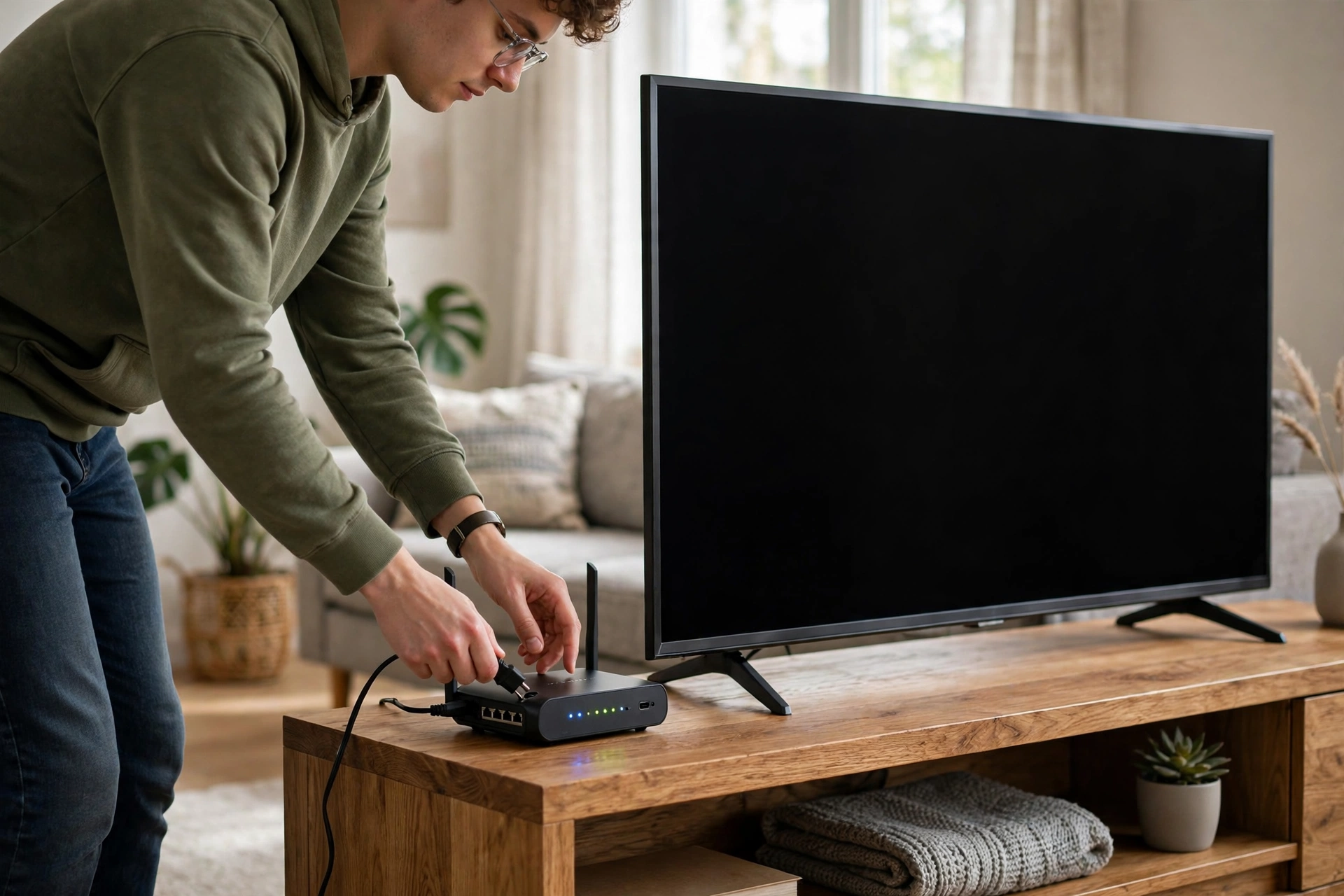
If your speed test looks bad, restart the router. Unplug it, wait thirty seconds, and plug it back in. Wait until the lights are steady, then try your IPTV app. A restart often restores full speed at once.
4. Check your subscription is still active
This is one of the most common causes. Log in to your provider’s site and check that your subscription is active and not expired. Check your username and password too — one wrong character blocks the login. If you renewed recently, activation may take a few minutes.
5. Update your IPTV app
An old app version can stop working after the provider changes something on its servers. Open your app store, find your IPTV player, and install any update. Do the same for the device: on a Firestick, go to Settings, then My Fire TV, then About, and check for a system update.
6. Clear the app cache
Over time, an IPTV app stores temporary data that can become corrupted and make the app freeze or crash. Clearing the cache removes this data without deleting your login or channels. On a Firestick, go to Settings, then Applications, then Manage Installed Applications, and tap Clear Cache.
7. Check the portal URL and playlist link
If you use a portal URL or M3U playlist link, a small typing mistake stops everything from loading. Check the address character by character: common mistakes are a missing letter, a space at the end, or “http” instead of “https”. If your provider sent a new link, use it. Never share your link: some providers block accounts used from too many places.
8. Try a different device or network
Open the same channel on another device, for example your phone, on the same Wi-Fi. If it works there, the problem is with the first device, not your subscription. If it fails everywhere, switch one device to mobile data. If the stream works on mobile data but not on home Wi-Fi, your home network is at fault.
9. Try a VPN if your internet provider is blocking streams
Some internet providers slow down or block IPTV traffic, especially in the evening — this is called throttling. If your IPTV works on mobile data but never on your home connection, throttling is likely. A VPN hides what kind of traffic you use, so the provider cannot single out your streams.
10. Reinstall the app or try another player
If nothing else worked, uninstall the IPTV app and install it again from the official app store. A fresh install removes corrupted files and resets the settings. Enter your login details or playlist link carefully, and test one channel first. You can also try a different player with the same details: if it works, the first app is the problem.
Tired of IPTV problems? Switch to a stable Premium service — see our Premium IPTV plans and order today, ready within 10 minutes to 8 hours.
IPTV Not Working on Firestick or Smart TV?
Firestick users see this problem most, because the device has limited storage. Check the free space under Settings, then My Fire TV, then About, then Storage: if less than 1 GB is free, uninstall apps you do not use. Then force stop the IPTV app and clear its cache, as in fix six. Check the Firestick is not overheating, and use its power adapter, not a TV USB port. On a Samsung or LG Smart TV, restart the TV by unplugging it for thirty seconds, update its software, and reinstall the app. Also check the date and time settings: a wrong clock can break the secure connection. If no update is offered, the TV model may no longer be supported, and a cheap streaming stick beats replacing the TV.
When to Contact Your IPTV Provider
If you tried all ten fixes and channels still do not load anywhere, the problem is probably on the provider’s side: contact support. Note what you already tried, the exact error message if there is one, and whether all channels or only some are affected. Ask whether there is a server problem, whether your account is active, and whether the portal address has changed.
Frequently Asked Questions
Why does my IPTV keep freezing every few minutes?
Freezing is usually a speed problem. Test your connection, restart your router, and switch to the 5 GHz band. If it freezes only in the evening, your provider may be slowing video traffic, and a VPN can help.
Why is my IPTV subscription not working after I renewed?
Usually the new period is not activated yet, or the app still uses the old login session. Log out and log in again, check the expiry date, and wait up to an hour. If it still fails, contact your provider with your payment receipt.
Why does IPTV work on Wi-Fi but not on mobile data?
Mobile data is often slower than home Wi-Fi, especially indoors. Lower the stream quality in the app settings. If IPTV works on mobile data but not on Wi-Fi, restart your router and check for throttling.
Related guides
- How to Set Up IPTV on Firestick: Easy 2026 Guide
- How to Fix IPTV Buffering on Firestick and Smart TV
- whether you need a VPN for IPTV
- how to fix IPTV sound problems
Follow our WhatsApp Channel for daily schedules and offers: https://whatsapp.com/channel/0029VaC7mmmBadmgFUAjJk3M