Your iPhone is already a pocket TV, and your iPad is a portable living-room screen — so it makes sense to watch IPTV on iPhone and iPad whenever you are away from the big screen. The good news is that setup is quick: there is no jailbreak, no sideloading, and no extra hardware involved. You install a player from the App Store, add your subscription details, and your channels are ready. This guide walks you through the whole setup, plus the settings that keep streams smooth on the move.
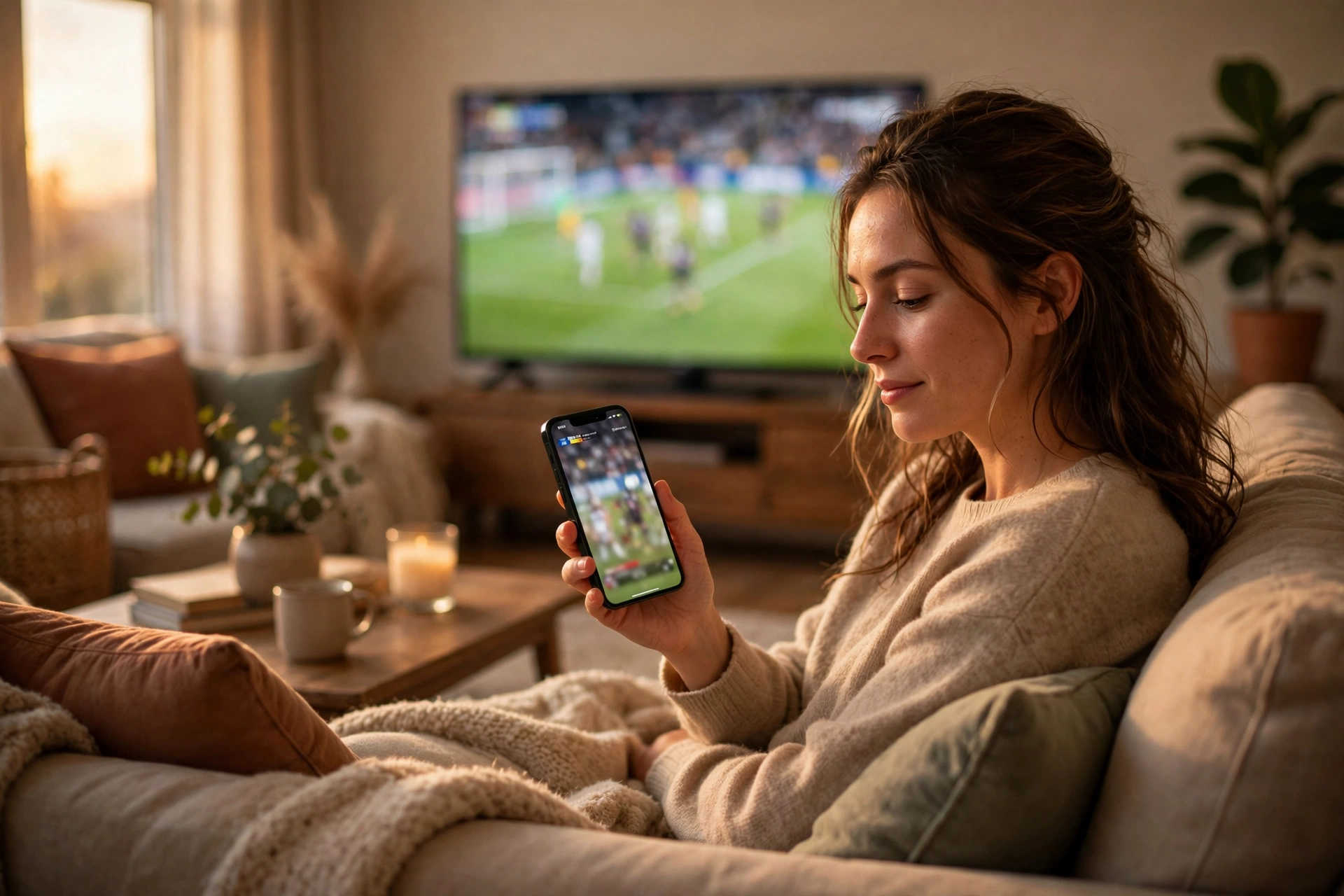
What You Need Before You Watch IPTV on iPhone
Before you start, have three things ready. First, an active IPTV subscription — your provider should have sent you either an M3U playlist link or Xtream Codes login details (server URL, username, and password). Second, a stable internet connection; Wi-Fi is best, but a strong 4G or 5G signal works too. Third, an IPTV player app from the App Store. The player is just the app that shows your channels — it does not include any channels by itself.
You do not need a VPN, a special cable, or a second device. Everything happens on the phone or tablet itself.
Best IPTV Player Apps for iPhone and iPad
Several good IPTV players are available for iOS and iPadOS. IPTV Smarters Pro is one of the most popular: it supports Xtream Codes login, M3U playlists, an on-screen guide, and catch-up TV. GSE Smart IPTV is another solid choice, with support for M3U and Xtream Codes plus AirPlay built in.
When you choose, check that the app supports your login type, that it has an electronic program guide, and that recent App Store reviews mention it working on the latest iOS version.
How to Set Up IPTV on iPhone in 5 Steps
Setup takes about ten minutes. These steps use IPTV Smarters Pro as the example, but the flow is almost the same in any player.
First, open the App Store and search for your chosen player, then download and install it. Second, open the app and accept the terms on the first screen. Third, choose your login type: pick “Login with Xtream Codes API” if your provider gave you a server URL, username, and password, or “Load Your Playlist or File/URL” if you have an M3U link.
Fourth, enter your details exactly as your provider sent them. For Xtream Codes, that means the server address, username, and password; for M3U, paste the playlist URL. Give the playlist a name you will recognize, such as “My IPTV”. Fifth, tap Add User or Save and wait while the app downloads your channels. This can take a minute or two the first time.
When the download finishes, your channel list appears on the home screen. Tap Live TV to browse channels, Movies for films, or Series for shows. The process is identical on iPad — the larger screen simply shows more channels and a bigger guide at once.
Want the same channels on your phone, tablet, and TV? See our Premium IPTV plans and order in minutes.
How to Watch IPTV on iPad: Tips for the Bigger Screen
Watching IPTV on iPhone is great for travel, but the iPad is where it really shines. The bigger display makes the program guide easy to read, and you can use split-screen multitasking to keep a match on one side and a browser or chat on the other.
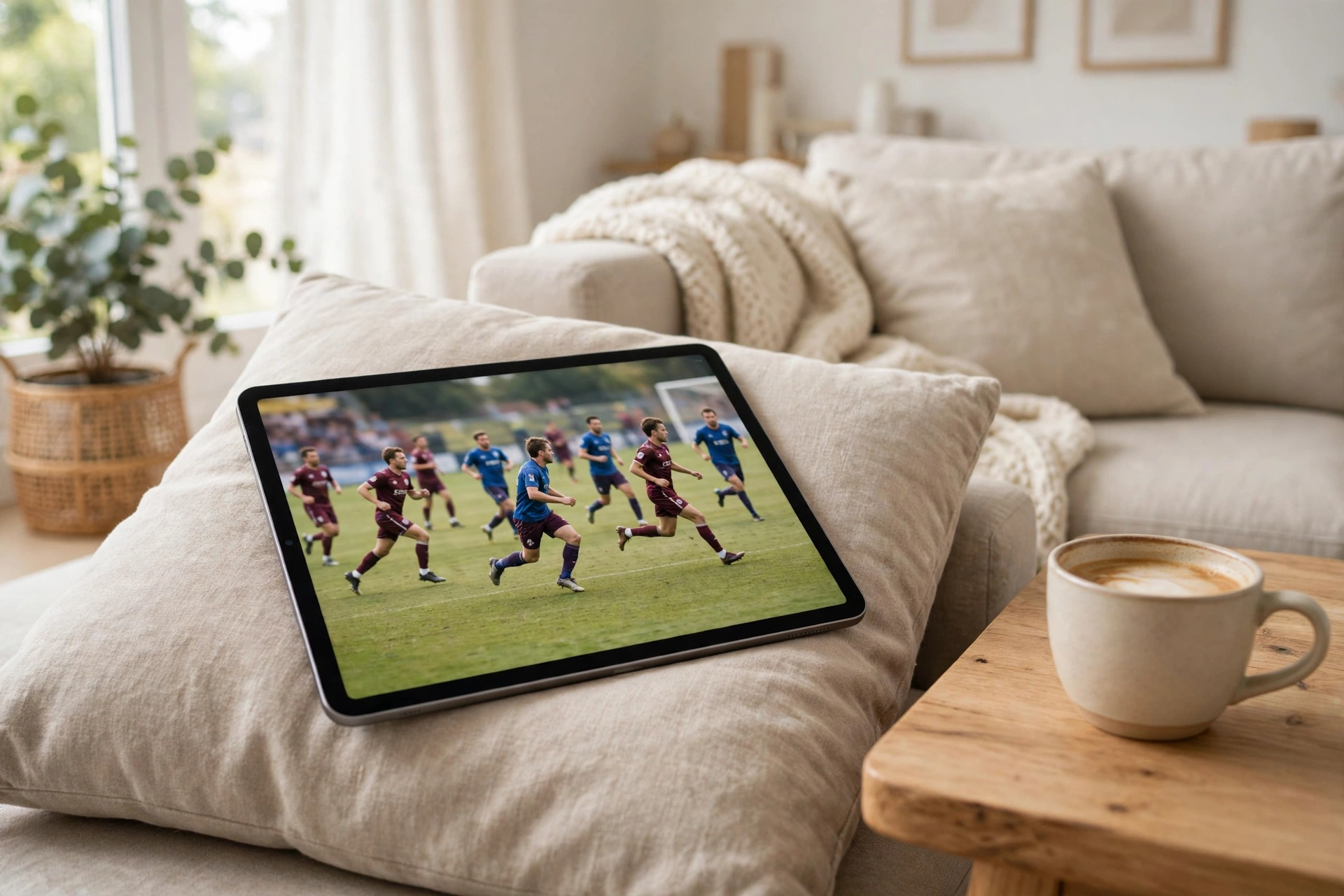
To use split screen, open your IPTV player, then drag a second app from the Dock to the side of the screen. Note that not every player supports picture-in-picture, so check the App Store description if you want to keep watching while you check another app.
If you have an Apple TV or an AirPlay-compatible smart TV, you can also send the stream to the big screen: tap the AirPlay icon in the player, pick your TV, and the video moves over while your iPad becomes the remote. A stable Wi-Fi connection matters here — AirPlay on a weak network will stutter.
IPTV on iPhone Not Working? 5 Quick Fixes
If your IPTV on iPhone setup is not playing nicely, work through these fixes in order.
First, check your internet connection. Switch between Wi-Fi and mobile data to see if one is the problem, and run a quick speed test — live TV needs around 10 Mbps for HD and 25 Mbps for 4K. Second, force-close the player app and reopen it; a stuck first login is often fixed by a restart.
Third, double-check your login details. Xtream Codes passwords are case-sensitive, and a single wrong character in a long M3U link breaks the whole playlist — copy and paste instead of typing. Fourth, clear the app cache if the player offers the option, or delete and reinstall the app to force a fresh channel download.
Fifth, check whether your subscription is still active and whether your provider’s server is up. If other devices on the same account also fail, the problem is on the provider’s side, not your phone’s.
Tips for Smooth IPTV Streaming on Mobile
A few habits make mobile IPTV much more reliable. Keep the app updated — iOS updates sometimes break older players, and developers fix it quickly.
Watch your data use: an hour of HD streaming uses roughly 1 to 2 GB, and 4K can use far more, so prefer Wi-Fi for long sessions. And keep your phone charged or plugged in; video streaming drains the battery fast, especially over 5G.
Frequently Asked Questions
Can I watch IPTV on iPhone without an app?
No. The iPhone has no built-in IPTV player, so you need an app from the App Store. The best players are free to try and take minutes to set up.
Is watching IPTV on iPhone legal?
Watching a legal IPTV service is legal. The app is only a player — what matters is that your subscription comes from a legitimate provider with the rights to the channels it offers.
Why does IPTV buffer on my iPhone but not my TV?
Mobile connections are less stable than home broadband. Try Wi-Fi instead of mobile data, move closer to your router, or lower the stream quality in the player settings.
Does IPTV work on iPad with cellular data?
Yes. The setup is the same as on Wi-Fi — just keep an eye on your data allowance, because video streaming uses a lot of it.
Related guides
- How to Watch IPTV on PC and Mac: Easy 2026 Guide
- How to Set Up IPTV on Apple TV: Easy 2026 Guide
- IPTV parental controls
- watch IPTV on Android phone
Follow our WhatsApp Channel for daily schedules and offers.