If you own a Chromecast, you already own one of the cheapest ways to get IPTV on your TV. You do not need a new box, a new subscription, or any technical skill. Learning how to watch IPTV on Chromecast takes about ten minutes, and once it is set up, you can stream live channels, sports, films, and series on the biggest screen in your home. To get the best picture, see our guide to IPTV in 4K.
There are two ways to do it. The classic Chromecast has no apps of its own, so you cast IPTV from your phone or tablet. The Chromecast with Google TV is a full Android TV device, so you can install an IPTV player directly on it. This guide covers both methods, so you can pick the one that fits your device.
What You Need to Watch IPTV on Chromecast
Before you start, check that you have these four things ready. Missing one of them is the cause of most setup problems.
First, a Chromecast plugged into your TV and connected to Wi-Fi. Any model works, but the Chromecast with Google TV gives the smoothest experience because it runs apps on its own.
Second, a phone, tablet, or computer on the same Wi-Fi network as the Chromecast. Casting only works when both devices share the same network.
Third, an IPTV player app such as IPTV Smarters or TiviMate — on your phone, or directly from the Play Store on Google TV.
Fourth, your IPTV login details from your provider: usually an M3U playlist link or Xtream Codes login (server address, username, and password). Keep them close, because you will enter them once during setup.
How to Watch IPTV on Chromecast from Your Phone
This is the method for the classic Chromecast, and it also works on Chromecast with Google TV if you prefer using your phone as the remote.
Start by installing an IPTV player on your phone and logging in with your provider details. Open the app, add your playlist or Xtream Codes login, and wait for the channels to load. Play any channel for a few seconds to confirm the stream works on the phone itself.
Next, tap the Cast icon inside the player app — a small TV with Wi-Fi waves, usually in the top corner. Select your Chromecast from the list, and the channel starts playing on your TV within a few seconds.
Your phone now works as the remote control: change channels, pause, adjust the volume, and browse the guide while the video plays on the TV. You can even lock the phone or use other apps, and the stream keeps playing.
If the Cast icon does not appear, check that both devices are on the same Wi-Fi network and that your player app supports casting — not every IPTV player does. IPTV Smarters supports casting on Android; if your app does not, use the Google TV method below. Google explains the basics of casting in its official Chromecast support pages.
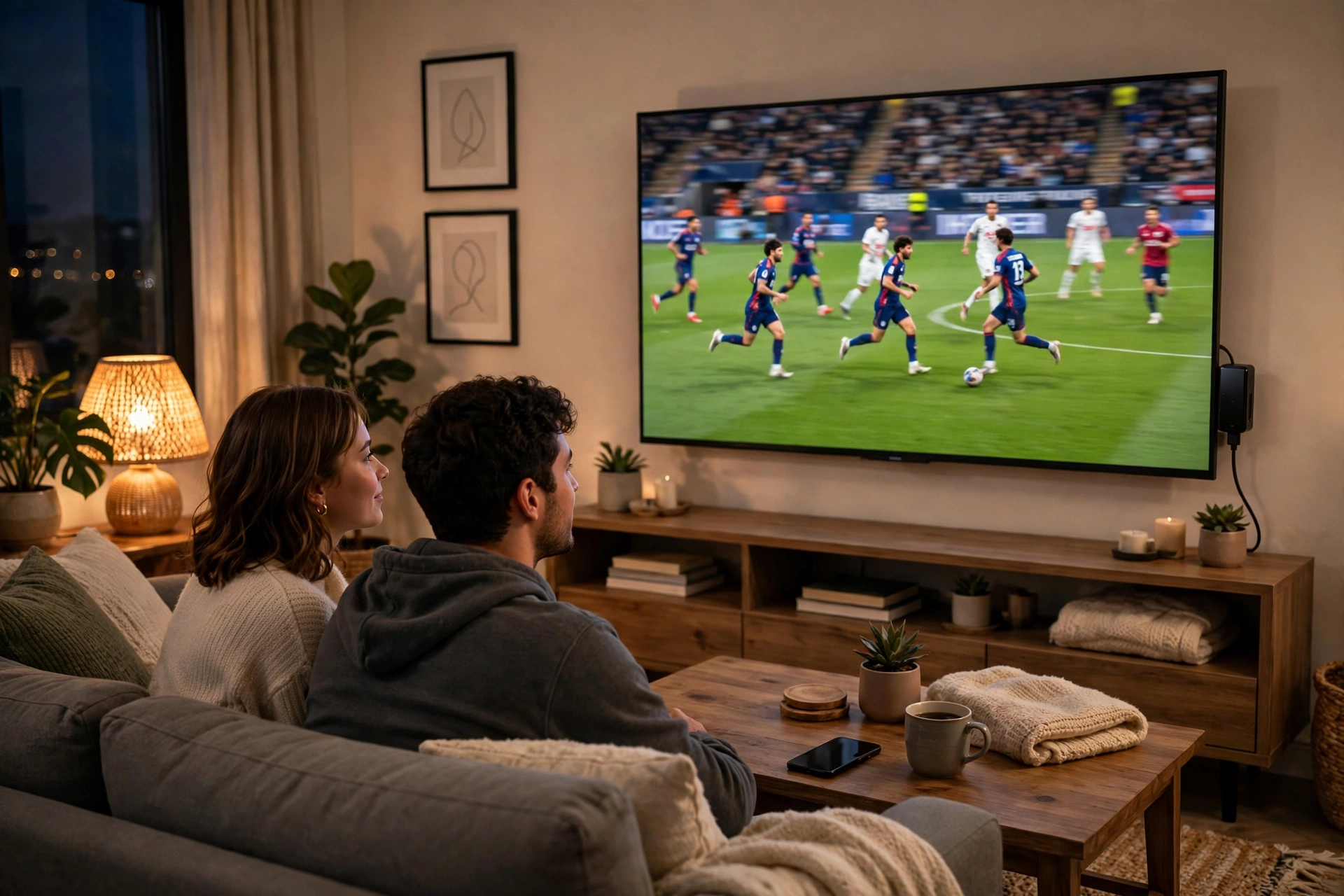
How to Watch IPTV on Chromecast with Google TV
If you own a Chromecast with Google TV, you can skip the phone entirely and install the player on the device itself. This is the better option, because the remote controls everything and the picture quality is usually more stable.
From the Google TV home screen, open the Play Store and install an IPTV player such as TiviMate or IPTV Smarters Pro. Open it, add your provider details — your M3U link or Xtream Codes login — and give the playlist a minute or two to load the first time.
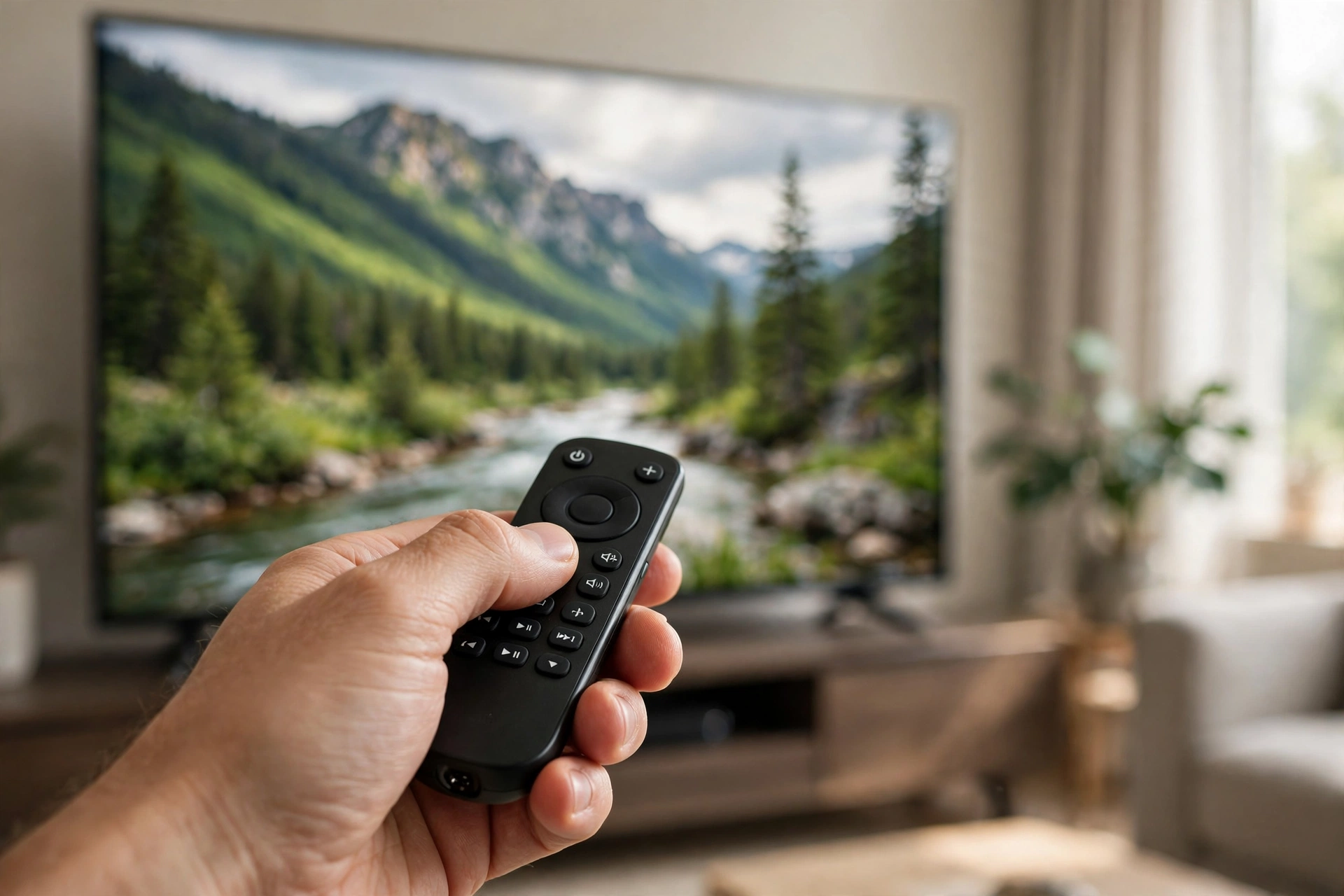
Once the channels appear, open the programme guide, pick a channel, and press play. That is the whole setup. If you see stuttering, turn on hardware decoding in the player settings.
One tip: if your Wi-Fi is weak, use an Ethernet adapter. The Chromecast with Google TV supports an optional USB-C adapter with an Ethernet port, and a wired connection removes most buffering in one move.
Watch Your Premium IPTV Plans on the Big Screen
Setting up IPTV on Chromecast is quick, but the quality of what you watch depends on the service behind it. A good provider gives you stable streams, a full channel list, and support when something stops working. If you want to see what is available, take a look at our Premium IPTV plans — one subscription covers live TV, sports, films, and series in 4K, and you can try it free for 24 hours before you decide.
Fix IPTV on Chromecast Buffering and Casting Problems
Buffering is almost always a network problem, not a Chromecast problem. Restart your router and your Chromecast, then run a speed test on your phone while standing next to the TV — that corner of the room is often the weakest spot for Wi-Fi.
If the picture still freezes, lower the stream quality in the player app for a test. If a lower quality plays smoothly, your connection is the limit — a wired Ethernet adapter or a Wi-Fi extender near the TV will fix it.
When the Cast icon is missing, restart the Google Home app, check that both devices share the same network, and make sure your Chromecast firmware is up to date. A Chromecast that has not updated in months can lose casting features until it restarts.
If a channel plays on the phone but shows a black screen on the TV, the stream format may not be supported for casting. Try another channel, then switch to the Google TV app method, which plays far more formats directly. You can read more about how IPTV works on Wikipedia’s IPTV article.
IPTV on Chromecast FAQs
Can I watch IPTV on any Chromecast?
Yes. The classic Chromecast works by casting from your phone, while the Chromecast with Google TV also lets you install an IPTV player directly. Google TV is smoother for daily use.
Do I need a separate IPTV subscription for Chromecast?
No. Your existing IPTV subscription works on Chromecast the same way it works on a Firestick or a smart TV. One subscription covers your devices, and you simply log in with the same details.
Why does IPTV keep buffering on Chromecast?
Buffering usually means weak Wi-Fi near the TV. Move the router closer, use the 5 GHz band if you are near the router, or connect through an Ethernet adapter for the most stable result.
Related guides
Follow our WhatsApp Channel for daily schedules and offers: https://whatsapp.com/channel/0029VaC7mmmBadmgFUAjJk3M