A projector turns a normal evening into a cinema night — and it works just as well for live TV as it does for films. You do not need a smart projector: any projector with an HDMI port can run IPTV through a small streaming stick or box. In this guide, you will learn how to watch IPTV on projector screens in 2026: what to plug in, how to set up the player, and how to get a bright, sharp picture.
Quick Answer: To watch IPTV on projector, plug a Firestick, Chromecast with Google TV or Android TV box into the projector’s HDMI port, connect it to Wi-Fi, install an IPTV player such as TiviMate or IPTV Smarters Pro, and add your subscription with the M3U link or Xtream Codes login your provider sent you. Then dim the lights and pick a channel.
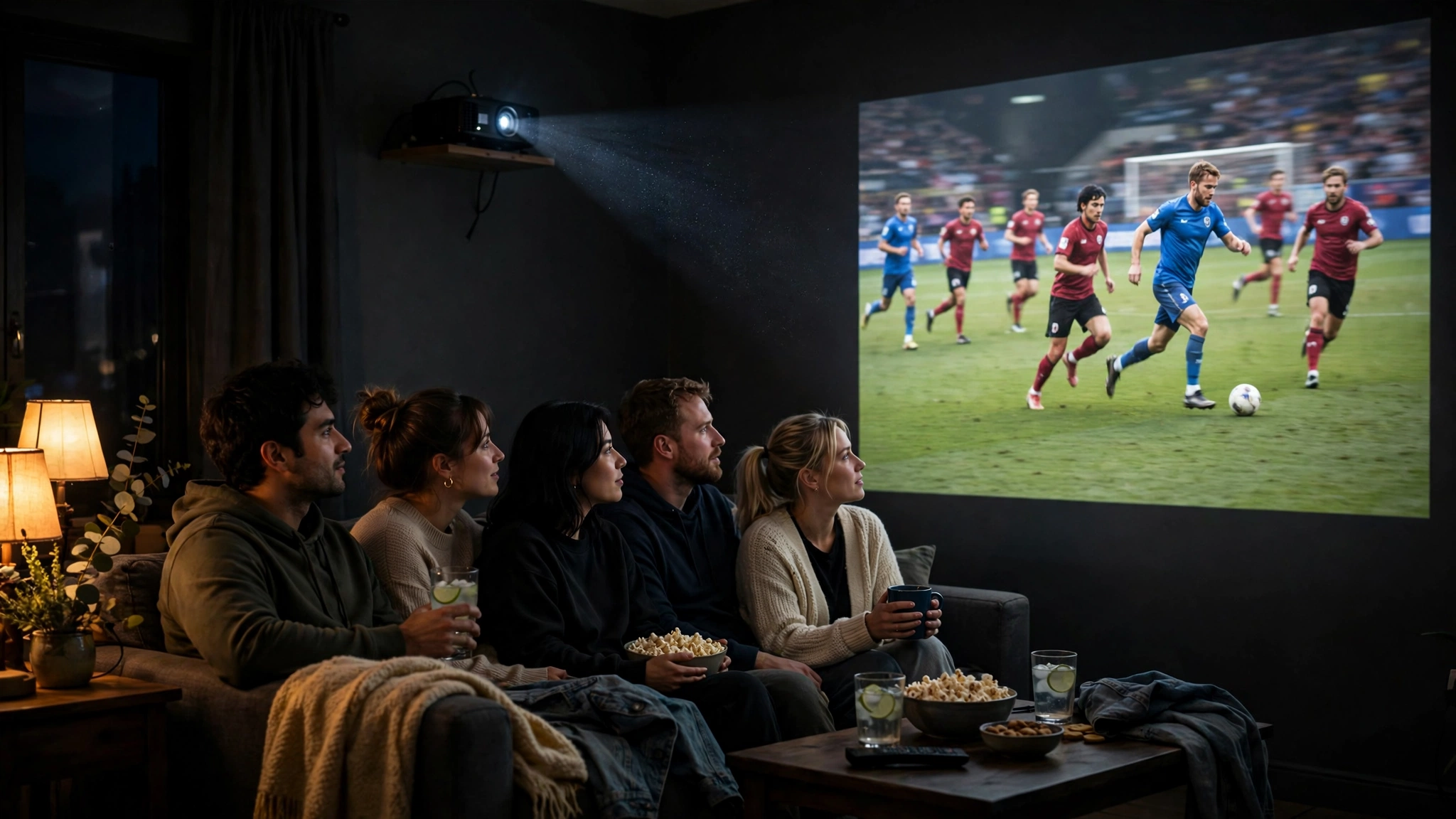
What You Need to Watch IPTV on a Projector
Before you start, check four things. First, your projector: any model with an HDMI port works, and 1080p or 4K gives the best picture. Second, a streaming device — a Firestick, a Chromecast with Google TV or an Android TV box — because most projectors have no apps of their own. Third, an active IPTV subscription — your provider sends a playlist link (M3U URL) or Xtream Codes login details after you sign up. Fourth, a stable internet connection — at least 25 Mbps for 4K — and a screen or a plain white wall. For background on how IPTV works, see the IPTV article on Wikipedia and the video projector article on Wikipedia.
How Do I Connect a Firestick to My Projector?
Connecting a Firestick to a projector takes two minutes. Plug the Firestick into the projector’s HDMI port — if the stick does not fit, use the short HDMI extender cable that comes in the box. Plug the Firestick’s power cable into a wall socket, not into the projector’s USB port, because the projector may not supply enough power. Switch the projector to the right HDMI input and the Firestick home screen appears. Connect it to Wi-Fi, sign in to your Amazon account, and you are ready to install a player. If the picture is too large or small, move the projector, or use the zoom and keystone settings.
How to Watch IPTV on a Projector Step by Step
Once the streaming stick is connected, the setup is the same as on any TV:
Step 1 — Install a player app. From the Firestick or Android TV home screen, open the app store and install TiviMate or IPTV Smarters Pro.
Step 2 — Choose how to log in. Open the player and pick Xtream Codes login if your provider gave you a server address, username and password, or M3U playlist if you received a playlist link.
Step 3 — Enter your details. Type the server address, username and password exactly as your provider sent them — one wrong character breaks the login — then press Add or Login.
Step 4 — Let the playlist load. The app downloads your channels and programme guide. A large playlist can take a minute or two.
Step 5 — Adjust the picture. Dim the lights, set the projector to Cinema mode, and pick a channel.
4K Media TV offers 57,000+ live channels and 185,000+ movies and series, with Premium one-time pricing, a 24-hour free trial, and ordering through WhatsApp.
Ready for the big screen? If you do not have a subscription yet, take a look at our Premium IPTV plans — choose the plan that fits your household, order in a few clicks, and your login details arrive quickly so you can start streaming on your projector today.
Can I Watch IPTV on a Projector in 4K?
Yes, you can watch IPTV on a projector in 4K if your projector supports it. A 4K projector paired with a Firestick 4K Max gives you a cinema-size 4K picture. You also need a subscription with 4K channels and an internet speed of at least 25 Mbps. Set the projector to its highest resolution and keep the room dark — projectors lose contrast in daylight. For the sharpest big-screen picture, see our guide to the best IPTV 4K setup.
IPTV on Projector Not Working? Quick Fixes
Most problems with IPTV on a projector have simple causes. If the projector shows “no signal”, check the HDMI cable is fully plugged in and the projector is on the right input. If the Firestick will not power on, use a wall socket instead of the projector’s USB port. If channels buffer, move the stick closer to your router and test your speed. If the picture looks washed out, switch the projector to Cinema mode and close the curtains — projectors need a dark room.
Tips for the Best Big-Screen IPTV Experience
A few small habits make a big difference. Use a proper projector screen instead of a painted wall if you can — the picture is brighter and sharper. Add a soundbar or speakers, because most projector speakers are weak and tinny. Keep the air vents clear and clean the filter now and then, so the fan stays quiet. And use the player app’s favourites list: on a screen that size, scrolling through thousands of channels takes forever.
IPTV on Projector: Frequently Asked Questions
Can any projector run IPTV?
Yes. Any projector with an HDMI port can run IPTV through a Firestick, Chromecast or Android TV box. The projector itself needs no apps or smart features.
Do I need a smart projector for IPTV?
No. A basic projector plus a streaming stick does the same job, and the stick is cheaper to replace than the projector when you want an upgrade.
Is IPTV on a projector good for sports?
Yes, a projector is great for live sports — the picture is huge and the crowd feels close. You need a stable connection of at least 25 Mbps for smooth 4K, and a dark room for the best contrast.
Can I use IPTV on a projector outdoors?
Yes, if you have Wi-Fi outside and a power socket for the projector and stick. Wait until dusk, because even the brightest projector struggles in sunlight.
Related guides
Follow our WhatsApp Channel for daily schedules and offers: https://whatsapp.com/channel/0029VaC7mmmBadmgFUAjJk3M