If you have ever opened your IPTV app and wished you could see what is on TV right now — and what is coming up next — that is exactly what the IPTV EPG is for. EPG stands for Electronic Program Guide, and it turns a plain channel list into a real TV guide, with show names, start times, and short descriptions. This IPTV EPG guide explains what it is, how it works, and how to set it up in the most popular IPTV players.
Once you know how to use it, you can scan the next few hours and jump straight to the match, movie, or show you want.
What Is an IPTV EPG?
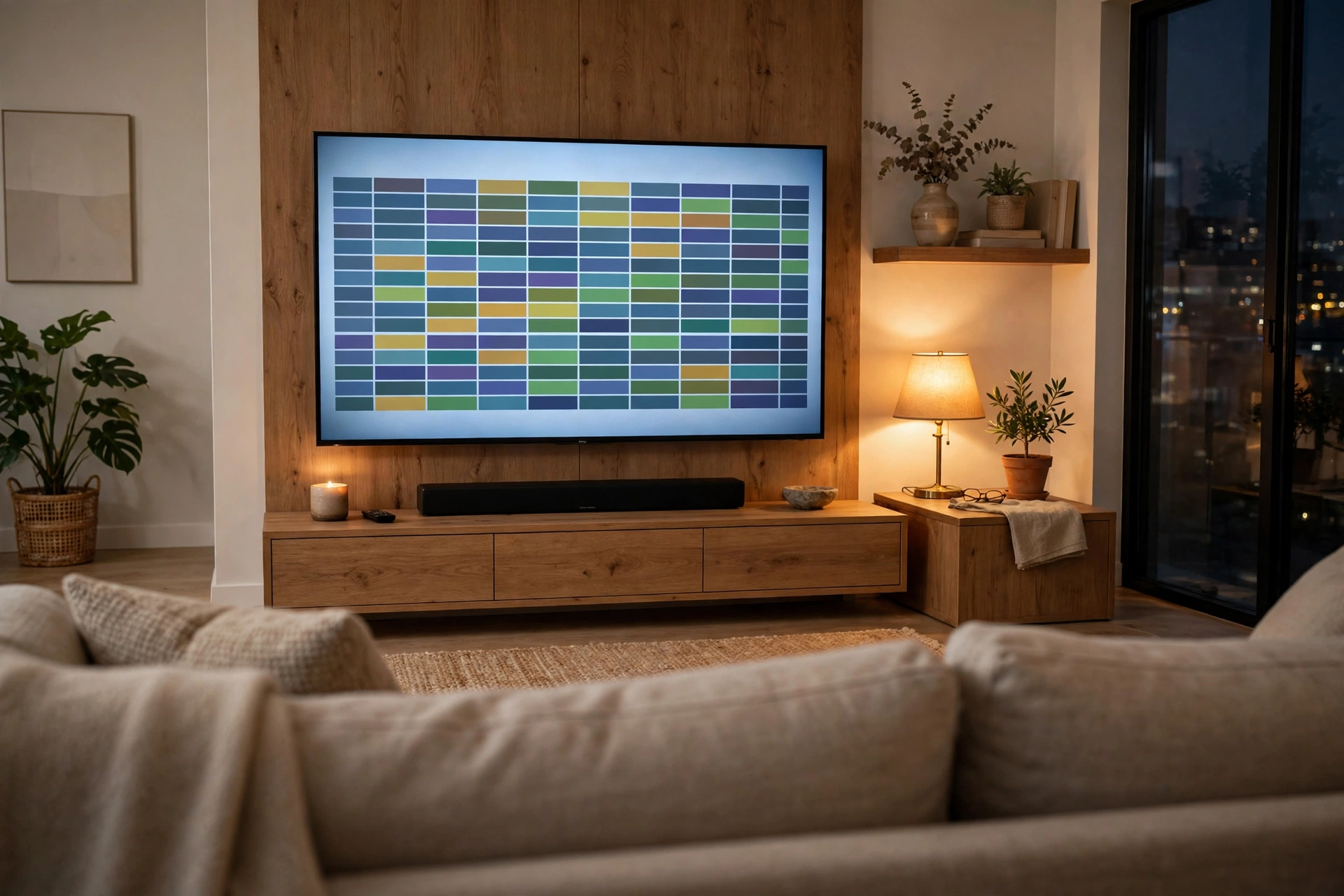
An IPTV EPG is an on-screen TV guide built into your IPTV service. It shows a grid of channels and a timeline of programs, just like the guide on a cable or satellite box. For each channel you can see the current program, what is on next, and what is scheduled later.
The guide usually shows the program title, start and end time, a short description, and the category, such as sport, news, or movie. Some also show a progress bar for the current show.
Not every IPTV service includes an EPG, and quality varies a lot. A good provider keeps its guide data fresh and covers most channels; a weak one may cover only a few, or show times that are hours off. That is why the EPG is a great way to judge a service during a free trial.
How the IPTV EPG Works
Behind the scenes, an IPTV EPG is a data file that your player downloads and matches to your channel list. The most common format is called XMLTV. Your provider gives your app two things: a playlist with the channels, usually an M3U link, and a separate EPG link that points to the XMLTV file.
When you open the app, it downloads the guide data and matches it to channels by their IDs. That is why the guide sometimes works for one channel and shows nothing for another: if the IDs do not match, the player cannot connect the two.
Guide data is updated regularly, often once a day, and most players refresh it automatically when you open them. If your guide looks outdated, refresh it manually. The file also uses a time zone, so a wrong device clock shifts every program.
How to Load the IPTV EPG in TiviMate
TiviMate has one of the best guide layouts of any IPTV player, and loading the IPTV EPG in it takes only a few minutes.
First, open TiviMate and go to Settings, then Playlists. Select your playlist, then choose EPG sources. Tap Add EPG source and paste the EPG link your provider gave you. Give it a name you will recognize, then confirm.
Next, go back and select Update EPG. TiviMate downloads the guide data and matches it to your channels — this can take a few seconds or a couple of minutes. Then open the TV guide from the main menu to see the programs listed.
If some channels still show “No information”, update your playlist first, then update the EPG again. The two files have to be in sync for the guide to line up correctly.
Looking for an IPTV service with a full, accurate TV guide? See our Premium IPTV plans and order in minutes: https://stream4kmedia.com/#pricing
How to Load the IPTV EPG in IPTV Smarters
IPTV Smarters also supports a full IPTV EPG, and the setup is similar. Open the app, log in, and go to Live TV. Tap the EPG or TV Guide option in the menu or at the top of the screen.
In most cases, IPTV Smarters loads the guide automatically once you log in with an Xtream Codes account. If the guide is empty, open Settings, look for the EPG section, and check that the EPG source is enabled. Some versions let you add an EPG link manually — paste the link your provider supplied and save it.
After saving, give the app a minute to download the data, or close it fully and reopen it to force a fresh download. Once loaded, scroll the timeline, tap any program for details, or search for a specific show.
IPTV EPG Not Loading? 5 Fixes That Actually Work
A blank or broken IPTV EPG is a common complaint, and it is usually easy to fix. Try these in order.
First, check your time zone. Set your device clock and time zone to automatic in the device settings. If your device is set to the wrong zone, every program will appear shifted or missing.
Second, refresh the guide manually. In TiviMate, go to Settings, then EPG, and choose Update EPG. In IPTV Smarters, reopen the guide or restart the app — a failed first download is often fixed by a second try.
Third, check your internet connection. The guide file can be large, and a weak connection may fail to download it even when channels still play. Restart your router and try again.
Fourth, make sure you are using the EPG link from your current provider. If you changed providers, an old link will download nothing. Ask your provider for the current link and replace the old one.
Fifth, clear the app cache. On Firestick and Android TV, go to Settings, then Apps, select your IPTV player, and choose Clear cache — not Clear data, which would delete your login and playlists. This removes the old guide file and forces a clean download.
If none of these work, the problem is usually on the provider’s side — the guide file may be down or out of date. Contact your provider and ask whether the EPG is working for other users.
Tips to Get More From Your IPTV EPG
Once your IPTV EPG is working, use the guide search to find a team, movie, or show across all channels, and mark favorite channels so the guide shows only those.
Check the guide before a big match or a movie night so you know the exact start time and channel, and set a reminder if your player supports it. If your player offers catch-up TV, the guide is how you find past programs — tap a show that already aired and watch it from the beginning.
Finally, remember the guide is only as good as the data behind it. If your provider’s EPG is always empty or wrong, that says a lot about the service itself.
Frequently Asked Questions
Does every IPTV service include an EPG?
No. Most premium services include an IPTV EPG, but some budget services do not, or only cover popular channels. Check before you subscribe and test it during the free trial.
Why does my IPTV EPG show the wrong time?
The most common cause is a wrong time zone or clock on your device. Set the time to automatic, then refresh the guide. If the problem remains, your provider’s guide data may use a different time zone.
Can I use an EPG with any IPTV player?
Most popular players support it, including TiviMate, IPTV Smarters, and Smart IPTV. You need an EPG link from your provider, usually in XMLTV format, with matching channel IDs.
Is the IPTV EPG the same as catch-up TV?
No, but they work together. The EPG shows what is on and what was on; catch-up TV lets you watch a program that already aired. The guide is how you find those past programs.
Do I need a separate app for the EPG?
No. The guide is built into your IPTV player — you only need the EPG link from your provider, added once in the player settings.
Related guides
How to Set Up IPTV on Firestick: Easy 2026 Guide ; TiviMate vs IPTV Smarters: Which Player Wins in 2026? ; IPTV catch-up TV ; update your IPTV playlist ; IPTV M3U playlist
Follow our WhatsApp Channel for daily schedules and offers: https://whatsapp.com/channel/0029VaC7mmmBadmgFUAjJk3M